Back
Back
How to Check for Understanding in Online Classes: 6 Methods

In this article
- Why is "Any questions?" not enough?
- 1. How do you quiz a whole online class at once?
- 2. How do you use mini whiteboards online?
- 3. What is a spot-the-mistake check?
- 4. How do you run an exit ticket online?
- 5. Why ask students to explain their answers?
- 6. Use reports to see patterns over time
- Frequently asked questions
- Check understanding in your next lesson
To check for understanding online, ask every student to respond during the lesson in a way that shows their thinking: a quick test with an answer summary, answers written on a shared whiteboard, a spot-the-mistake task or an exit ticket. Then use what you see to adjust the next part of the lesson.
Formative assessment is checking what students understand while the lesson is still running, so you can change what you teach next. It matters even more online, because most of the signals you read in a classroom disappear on a video call. The six methods below are quick, work live and give you evidence instead of guesses.
Why is "Any questions?" not enough?
"Any questions?" is not enough because confused students often do not know what to ask, and few want to admit it in front of others. Good checks have three things in common:
- Every student responds, not just the confident ones.
- The answer shows thinking, not only yes or no.
- You can act on it straight away, in the same lesson.
Each method below meets at least two of these.
1. How do you quiz a whole online class at once?
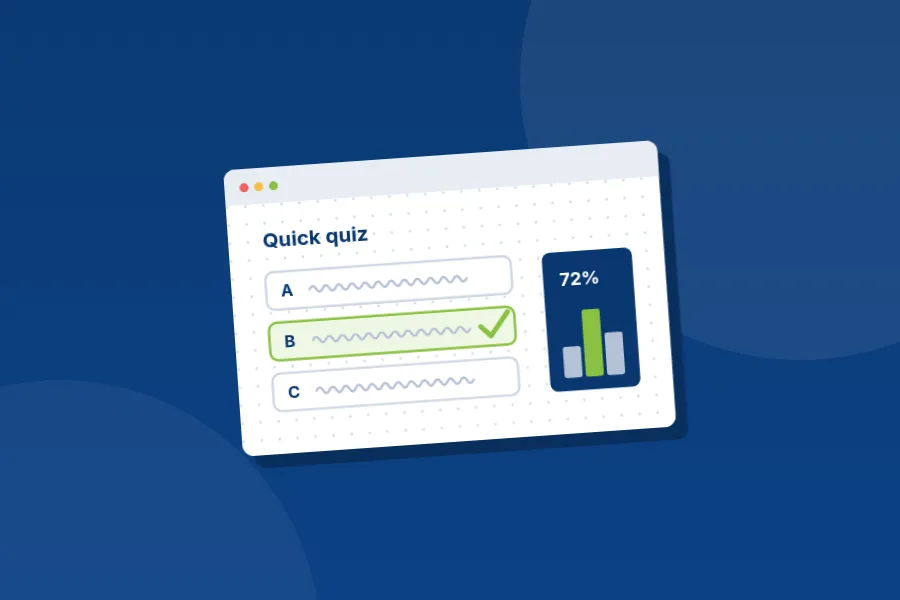
Use a short in-class test, the fastest way to hear from every student at once. In Educastic, the teacher publishes a test during the class, students answer against a countdown, and the teacher sees a summary of the answers when it ends.
Write questions that reveal misconceptions, not just recall. If you offer answer choices, make each wrong option a mistake students really make. When the summary shows a cluster on one wrong answer, you know exactly what to reteach. When nearly everyone gets it right, move on with confidence.
Keep it short: three to five questions, placed right after a new idea and again before the end of the lesson.
2. How do you use mini whiteboards online?
You use mini whiteboards online by giving students drawing access to the shared board and asking each one to write an answer in their own area or on a sticky note. Educastic's whiteboard lets the teacher control drawing access per student, so you can open the board to the whole group for a minute, then take it back once the answers are in.
This works especially well for working that a short test answer cannot capture: a sketch of a graph, a balanced equation or a corrected sentence.
3. What is a spot-the-mistake check?
A spot-the-mistake check is a worked solution or paragraph with one deliberate error that students must find and explain. They can answer in the chat or circle the error with the pen. Finding errors needs deeper understanding than producing a correct answer, and it shows you quickly who really understands the method.
4. How do you run an exit ticket online?
Run an exit ticket by leaving the last three minutes for one or two prompts on a new board tab, for example:
- "Solve this one problem."
- "Write one thing you learned and one thing that is still unclear."
- "Explain today's idea to a friend in one sentence."
Students answer on sticky notes or in the chat. Read them after class and use them to plan the start of the next lesson. In Educastic the tab stays with the session, so you can download it with the rest of the session's resources as a PDF and keep a record.
5. Why ask students to explain their answers?
Asking students to explain shows whether a right answer came from understanding or a lucky guess. After a student answers, ask a follow-up: "How did you get that?" or "Would it still work if the number were negative?" Let them show their reasoning on the board with the pen while they talk. You learn much more from thirty seconds of explanation than from a dozen correct answers in the chat.
6. Use reports to see patterns over time
Single lessons tell you about today. Patterns across lessons tell you about a student. Educastic gives teachers attendance and session reports, so you can see who attended and look back at sessions when a student starts to slip. Combine that with the test summaries and exit tickets you collect, and you have a simple, honest picture of each learner's progress.
After class, Educastic can also email a session report PDF (session details and your notes) to you and your learners. It is a useful reminder of what was covered when you plan the next check.
Choosing the right check
| Method | Best for | Time needed |
|---|---|---|
| Quick test with countdown | Spotting common misconceptions across the group | 3 to 5 minutes |
| Mini whiteboards with the pen | Seeing working, sketches and written answers | 2 to 5 minutes |
| Spot the mistake | Testing deep understanding of a method | 3 minutes |
| Exit ticket | Planning the next lesson | 3 minutes |
| Explain your answer | Checking reasoning in one-to-one or small groups | 1 to 2 minutes |
| Reports | Tracking attendance and progress over time | After class |
For more ways to keep every student active while you check, read how to keep students engaged in online classes.
Frequently asked questions
What is formative assessment in an online class? It is checking what students understand during the lesson, so you can adjust your teaching before the class ends, rather than finding out from a final test.
Can I run a quiz inside an Educastic class? Yes. You publish a test, students answer against a countdown, and you see a summary of the answers.
Can every student write on the board at the same time? Yes. In Educastic, the teacher gives or takes back drawing access per student at any time, so you can open the board to the whole group for an activity and close it again afterwards.
Does Educastic keep attendance? Yes. Teachers get attendance and session reports.
Check understanding in your next lesson
Open the Educastic online whiteboard, prepare a three-question test and an exit ticket tab, and see what your students really understood today.