Back
How to Teach Geometry Online

In this article
- What do you need to teach geometry online?
- How do you draw accurate figures on an online whiteboard?
- How do you teach 3D shapes online?
- How do you get students to reason, not just look?
- Which geometry topics work best on a shared whiteboard?
- How do you check geometry understanding online?
- Frequently asked questions
- Try a geometry lesson on a live whiteboard
To teach geometry online, draw figures with precise shape tools on a grid, label every side and angle, and let students mark the diagram themselves while they explain their reasoning. Use isometric paper for 3D solids, ready-made diagrams for standard facts, and keep compass constructions for a dedicated geometry app.
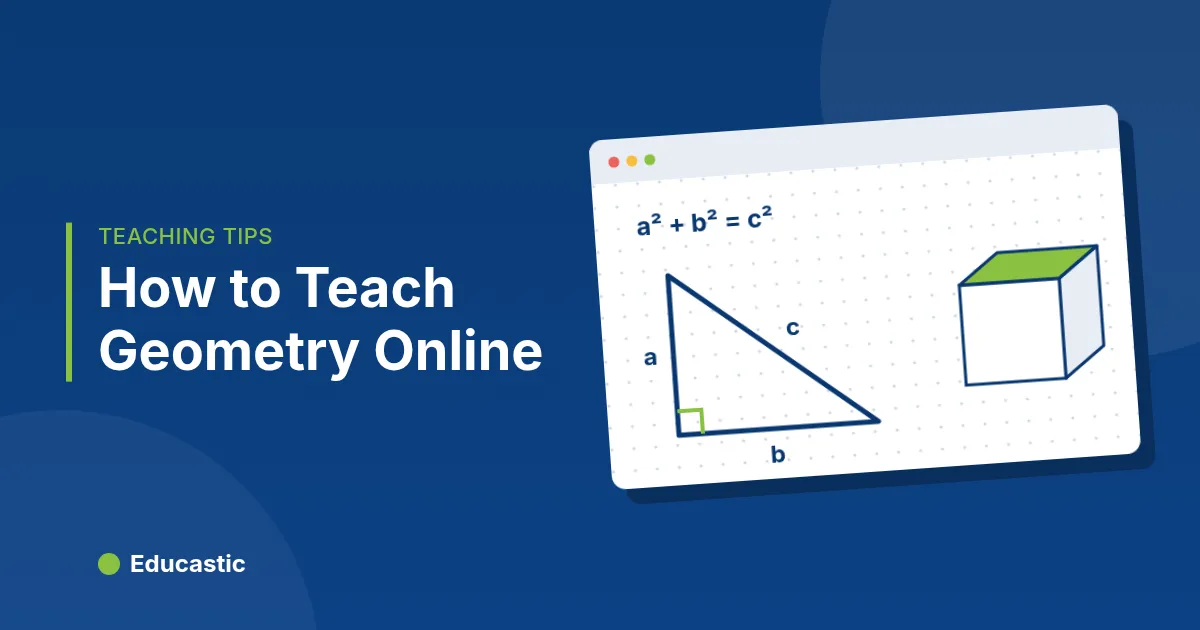
Geometry is visual, which makes it a good fit for a shared whiteboard. The risk is messy diagrams: a triangle drawn freehand with a mouse rarely looks like the triangle you mean, and students argue about the picture instead of the math. The fix is to draw figures with tools and reason about them by hand.
What do you need to teach geometry online?
You need a whiteboard with exact shapes, grid backgrounds, labels and a way for students to draw on the figure. A stylus helps for marking angles and writing proofs, but shapes and labels work fine with a mouse.
Educastic's whiteboard includes what most geometry lessons need:
- Shapes: triangle, right triangle, square, circle, oval, polygons, rhombus, parallelogram and trapezoid, plus cube, cylinder and cone under More shapes.
- Labels on shapes and lines: double-click a shape to type a side length or a name inside it.
- Snap to grid: line ends and shape corners land on grid intersections, so lengths are exact.
- Math Paper: Dots, Graph, Coordinate plane, Isometric, Ruled lines and Blank.
- Ready-made diagrams in the Library drawer's Math tab: Types of Angles, Types of Triangles, Parts of a Circle, Pythagoras' Theorem, Special Right Triangles, and 3D Shapes: Volume and Surface Area.
What it does not have: a live ruler, protractor or compass. The Library's 45° and 30-60° set squares are transparent pictures for illustration, not measuring tools. For straightedge-and-compass constructions, use a dedicated geometry app and share your screen.
How do you draw accurate figures on an online whiteboard?
Draw accurate figures by combining a grid, snap to grid and shape tools. In Educastic:
- Choose Math Paper > Dots or Graph for plane figures. Dots give a lighter guide; Graph makes counting lengths easy.
- Turn on Snap to grid in the top bar.
- Pick a shape or a line and drag it out. The corners and ends snap to grid points.
- Label each side or vertex. Double-click a shape or line and type, or use text boxes for vertex letters such as A, B and C.
- Mark angles and equal sides by hand with a pen in a second color: arcs for angles, ticks for equal lengths. Freehand strokes never snap, so your marks stay natural.
When you need several figures lined up, select them with the Lasso and use Align or Distribute from the right-click menu.
How do you teach 3D shapes online?
Teach 3D shapes on isometric paper, where students can draw cubes and prisms that look solid. Start with the Cube, Cylinder and Cone shapes from More shapes to show the solid, then switch to Isometric paper and ask a student to build the same solid from unit cubes by drawing.
For volume and surface area, drag the "3D Shapes: Volume and Surface Area" picture from the Library's Math tab onto a tab, then work one example beside it. Ask students which formula applies before you calculate.
How do you get students to reason, not just look?
Get students reasoning by asking them to mark the diagram before they answer. Give one student Whiteboard Tools Access in the ATTENDEES & PRIVILEGES panel and ask them to mark what they know: equal sides, right angles, parallel lines. Then ask the class what follows from those marks.
A proof routine that works well online:
- State the claim at the top of the tab with a text box.
- Draw the figure with shapes and label it.
- A student marks the givens in one color.
- The class suggests each step in chat; you write the accepted step on the board.
- A second student marks what each step proves, in a second color.
- Write the conclusion and box it.
This keeps every student checking the reasoning, and it puts the reasons next to the figure where students can see them.
Which geometry topics work best on a shared whiteboard?
Topics that depend on a clear diagram work best: angle facts, triangle properties, the Pythagorean theorem, area and perimeter, coordinate geometry, transformations and 3D solids. Constructions with compass and straightedge work less well, because the whiteboard has no compass tool.
| Topic | Board setup | Student task |
|---|---|---|
| Angle facts | Dots paper, lines with snap | Mark the unknown angle and write the reason |
| Pythagorean theorem | Graph paper, right triangle shape | Count the sides, then calculate the hypotenuse |
| Area and perimeter | Graph paper, square and triangle shapes | Count squares, then use the formula |
| Coordinate geometry | Coordinate plane with Axis labels | Plot vertices and find a midpoint |
| Transformations | Coordinate plane | Draw the image after a reflection or translation |
| 3D solids | Isometric paper | Draw the solid from unit cubes |
For more ready-made math pictures, read our guide to math diagrams for online teaching.
How do you check geometry understanding online?
Check understanding with a question that needs a reason, not just a number. "Find angle x" can be guessed; "find angle x and name the fact you used" cannot. Run it as an in-class test with a text answer, or ask three students in turn to mark one step each on the board.
Record the lesson so students can replay a proof before homework, and save the board with Save Whiteboard Tab > Save as PDF to send them the labeled figures.
Frequently asked questions
Is there a free online whiteboard for teaching geometry?
Yes. Educastic is free for early adopters and includes shape tools, snap to grid, isometric and dotted paper, and a Math library of geometry diagrams.
Does Educastic have a protractor or compass?
No. Educastic has no live ruler, protractor or compass. Use a dedicated geometry app for constructions and share your screen.
Can students draw on the geometry diagram?
Yes. The teacher gives a student Whiteboard Tools Access, and that student can mark angles, sides and steps.
How do I draw a cube on an online whiteboard?
Use the Cube shape from More shapes, or switch to Isometric paper and draw it along the grid lines.
Try a geometry lesson on a live whiteboard
Set up dotted paper, turn on snap to grid and draw your first labeled triangle. Open the Educastic online whiteboard and let a student mark the givens in your next lesson.