Back
Back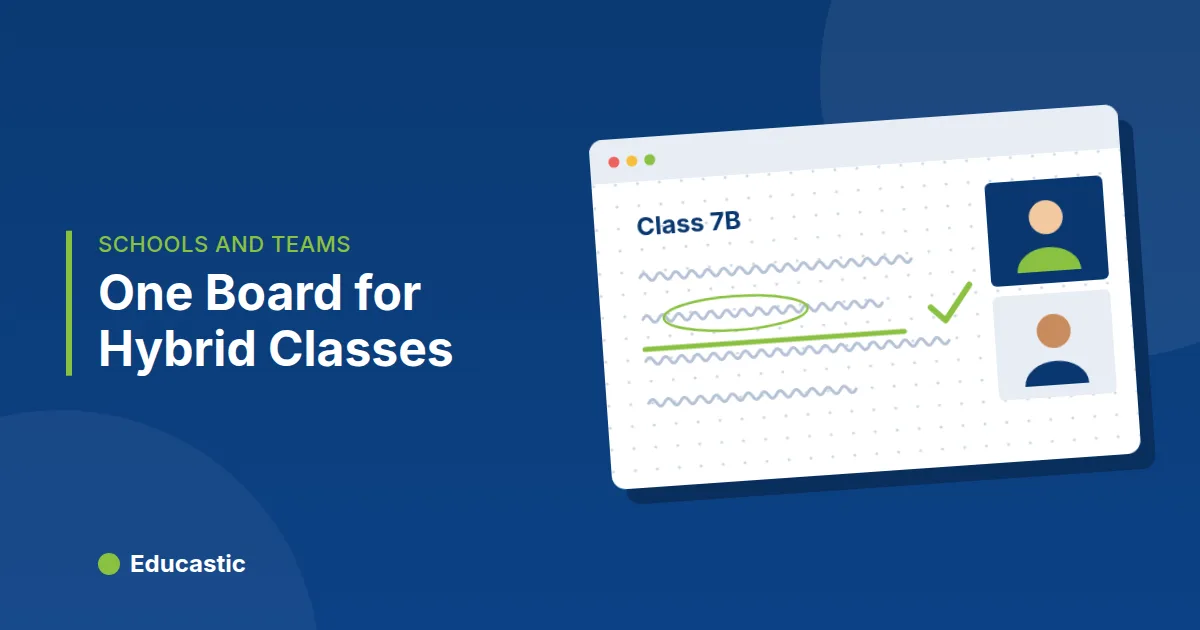
Hybrid Classroom Setup: One Online Whiteboard for Every Student

In this article
- What equipment do you need for a hybrid classroom?
- How do you use one board for in-room and remote students?
- How should you prepare a hybrid lesson?
- How do you keep remote students involved?
- Point, so everyone follows
- How do absent students catch up?
- Frequently asked questions
- Run your first hybrid class
A hybrid classroom setup works best with one online whiteboard for everyone: project the board in the room and have remote students join the same live session. Both groups then see the same work at the same sharpness, can write on it when you give them the pen, and can catch up later from the recording.
A hybrid classroom is a class where some students attend in person and others join live from home at the same time. The usual problem is that remote students get a blurry camera pointed at a physical board, cannot read it or write on it, and quietly stop taking part. This guide shows how to set up a single shared board and run it day to day.
What equipment do you need for a hybrid classroom?
You need a teacher computer, a projector or large screen, a way to write, a microphone and a webcam, and most rooms already have them:
- A computer for the teacher with a stable connection, wired if possible.
- A projector or large screen connected to that computer, so the room sees the board.
- A way to write. A drawing tablet, a touch screen laptop or a tablet with a stylus. Educastic's whiteboard runs in the browser and works with touch screens, so no install is needed.
- A microphone that picks up the teacher, and ideally one that can pick up students in the room when they answer.
- A webcam, so remote students can see you and feel part of the room.
How do you use one board for in-room and remote students?
Start the lesson on the online whiteboard, project it in the room, and have remote students join the same session through the invite link. In Educastic, when you write, the room sees it on the projector and remote students see it on their own screens, at full sharpness.
Because Educastic's board, webcam video and chat sit in the same browser tab, you do not need to juggle a video call app and a separate whiteboard. Screen sharing is there too, if you need to show another application for a moment.
How should you prepare a hybrid lesson?
Prepare a hybrid lesson on the board before class, because every transition happens twice: once for the room and once for the screen. Set it up in this order:
- Create a board tab for each part of the lesson: warm-up, explanation, practice, summary.
- Upload the worksheet or slides as a PDF onto the practice tab. Word and other documents convert to PDF on upload.
- Pick a background that suits the subject: ruled for writing, a coordinate plane for graphs, dotted for diagrams.
- Decide which tools students will need, and in Educastic choose which tools appear in the session.
How do you keep remote students involved?
Keep remote students involved by building their participation into the lesson on purpose, because the biggest risk in a hybrid class is that they become spectators:
- Give them the pen first. Ask a remote student to write the next step on the board. In Educastic, the teacher can give or take back drawing access per student at any time. The room watches their work appear on the projector, which tells everyone the remote group matters.
- Use the chat for the whole class. Students in the room can join the session on their own devices too, so everyone answers in the same chat.
- Run quick tests. Publish a test in Educastic, everyone answers against a countdown, and you see one summary of the answers for both groups.
- Repeat questions from the room. Remote microphones often miss what a student in the room says. Repeat it before you answer.
Point, so everyone follows
In a room, students follow your hand. On a projected board, they follow the cursor. Use Educastic's laser pointer, with fade and trail, to show exactly where you are on a diagram or document. Remote students see the same pointer, so "this one here" means the same thing to everyone.
How do absent students catch up?
Absent students catch up by watching the recording of the class. Hybrid classes often exist because some students cannot attend in person, and recording takes that one step further. In Educastic, recordings are kept in the My Recordings tab of My Library, can be replayed and downloaded, and only that class's participants, admitted guests and the owner can watch them. Tell students at the start that the class is being recorded. For tips on getting good recordings, see how to record online classes.
At the end, students can also download the session's resources from Educastic as a PDF, so the board work is available to both groups as notes.
A sample hybrid lesson
| Minutes | In the room | Online |
|---|---|---|
| 0 to 5 | Warm-up question on the projector | Same question, answered in the chat |
| 5 to 20 | Teacher explains on the board | Students follow on their screens |
| 20 to 30 | One student in the room solves a problem aloud | One remote student writes the next step |
| 30 to 35 | Quick test with countdown | Quick test with countdown |
| 35 to 45 | Practice on the uploaded worksheet | Practice on the same worksheet |
| 45 to 50 | Summary tab | Summary tab, recording available later |
Frequently asked questions
Do students at home need to install anything? No. Educastic runs in the browser, and students join through the session's invite link.
Can students in the room and at home use the same whiteboard? Yes. Project the session in the room and have remote students join the same session. Everyone sees and, with access from the teacher, writes on the same board.
Who can watch the recording of a hybrid class? Only that class's participants, admitted guests and the owner can watch it.
How many students can join a session? Up to 49: Educastic has been tested with up to 49 attendees in one session.
Run your first hybrid class
Open the Educastic online whiteboard on your classroom computer, project it, and send the invite link to your remote students.