Back
Back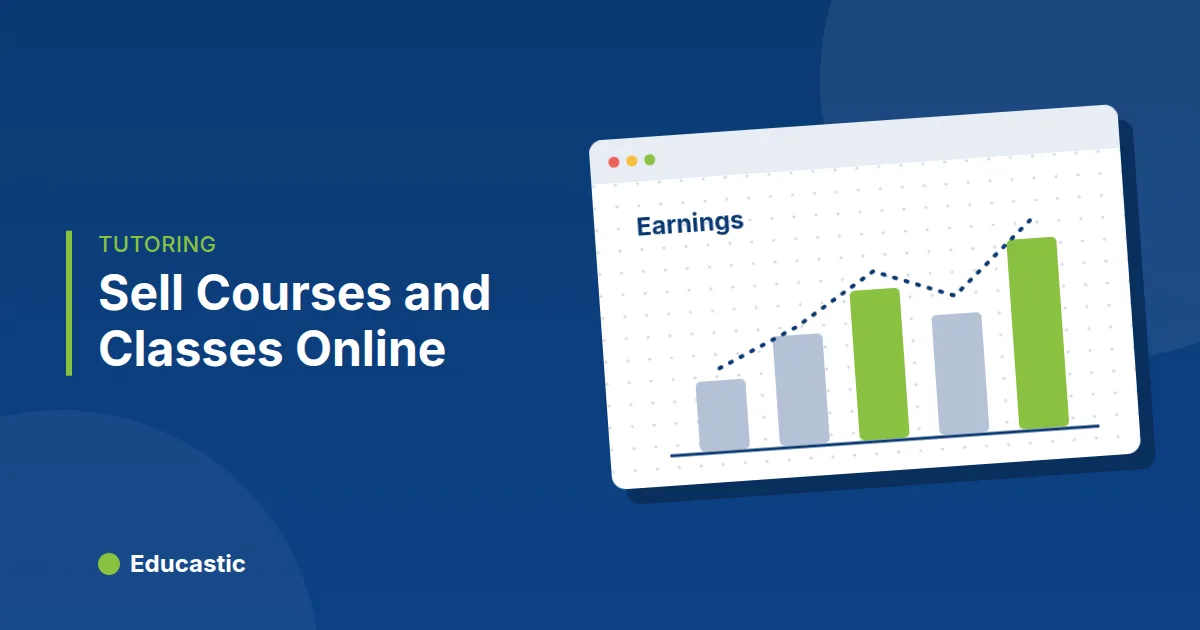
How to Sell Online Courses and Classes and Get Paid with Stripe

In this article
- What can you sell on Educastic?
- How do you connect Stripe to get paid?
- How do you set a price on a course or a class?
- How do students buy your course or class?
- How do coupon codes work?
- Where do you see what you have earned?
- What should you check before you start selling?
- Frequently asked questions
- Start selling your teaching
To sell online courses and classes, connect a payment account, give each course or live class a price, publish it where students can find it and track what you earn. In Educastic you connect Stripe once from your profile, set a cost on a course or public session, and students pay by card at checkout.
Many independent teachers start with free lessons and then hit the same wall: chasing bank transfers, sending payment reminders and keeping a spreadsheet of who has paid. Selling through the same platform you teach on removes that admin. The student pays, gets access and you both receive an email.
What can you sell on Educastic?
Educastic lets a teacher sell four kinds of teaching:
| What you sell | What the student gets |
|---|---|
| A course | Enrolment in the course with its modules and lessons |
| A single live session | A place in that scheduled session (Educastic calls a session an "educast") |
| A series | A place in every session of the series |
| A tutoring booking | Sessions booked with you from your public profile |
A course, session or series with a cost of 0 is free; students get it without going through checkout. A session set to Private has no price, because only the people you invite can join it.
How do you connect Stripe to get paid?
Educastic pays teachers through Stripe, so connecting Stripe is the first step before you sell anything.
- Open My Profile from the menu under your profile picture.
- Go to the Bank Info tab.
- Click Connect Stripe. Educastic sends you to Stripe to create or confirm your account and add your bank details.
- Finish Stripe's steps. You return to Educastic and the card shows that your Stripe account is connected.
From the same card you can Edit Stripe Details or Disconnect Stripe. A paid series cannot be published until Stripe is connected, and a student cannot pay a teacher who has not connected Stripe. The Hire me button on your public profile, which students use to book you, also only appears once Stripe is connected.
How do you set a price on a course or a class?
You set the price in the Cost field when you create the course or session.
- Course: fill in Cost ($) on the course's general information step.
- Live session: set Educast Type to Public, then fill in Cost. Switching the type to Private hides the price.
Prices are in US dollars. If you are unsure what to charge, work it out from your hours and level first; how much to charge for online tutoring walks through the maths.
How do students buy your course or class?
Students buy from the item's details page on the Educastic Marketplace. The steps they follow:
- Open the course, session or series and click Get Course, Get Educast or Get Series.
- On the Payment Selection page, enter a coupon code if they have one and click Apply.
- Check the Sub-Total, Tax and Total Amount.
- Enter their email and card details and click Purchase.
When the payment succeeds, Educastic enrols the student in the course or adds them to the session or series, and sends a confirmation email to both of you. Past payments appear under Purchase History.
How do coupon codes work?
A coupon code gives students a discount on what you sell. Create one from the Coupon Code tab on your Courses page:
| Field | What it does |
|---|---|
| Coupon Code | The code students type; Generate creates a random one |
| Type of Coupon | Fixed Amount or Percentage(%) |
| Coupon Parameter | The amount or percentage off |
| Maximum allowed users | How many students can use the code |
| Maximum use of code per user | How many times one student can use it |
| Start Date and End Date | When the code is valid |
| Status | Active, Disable or Expired |
A coupon you create works only on your own courses and classes. Use short, time-limited codes for a launch week or a returning-student discount, and switch them to Disable when the offer ends.
Where do you see what you have earned?
You see your earnings under Sessions > Analytical Reports. The reports include Monthly Revenue, Average Revenue By User, Educast Subscribers, Series Subscribers, Monthly Earnings and Earning History.
Earning History shows your Current Balance, Total Payout and Total Earnings, then a table of every sale with the student, the title, the amount, the commission and your total, which you can filter by type and by date. The commission column is the platform fee taken from each sale before the rest is paid to your Stripe account; tax is added to the student's total at checkout.
What should you check before you start selling?
A few practical checks save awkward conversations with students later:
- Connect Stripe first. Do it before you announce a paid course, not on launch day.
- Check that Stripe works in your country. Payouts go through Stripe, so you need an account Stripe can pay out to.
- Run one test purchase with a friend. A low-priced test item shows you the full student journey, including the confirmation email.
- Keep one free option. A free first session or a free short course is the easiest way for a new student to try your teaching before paying; see how to start online tutoring.
Frequently asked questions
Do I need Stripe to sell on Educastic? Yes. Educastic pays teachers through Stripe Connect, and students cannot pay a teacher who has not connected a Stripe account.
Can I offer a course for free? Yes. Leave the cost at 0 and students get the course without going through checkout.
Can students use discount codes? Yes. You create coupon codes with a fixed amount or a percentage off, a usage limit and start and end dates.
Where do I see my sales? Under Sessions > Analytical Reports > Earning History, with the amount, commission and your total for each sale.
Does Educastic charge to use its teaching tools? No. Educastic includes all of its teaching features in the free version.
Start selling your teaching
Connect Stripe, price your first course or class and teach it on the Educastic online whiteboard.