Back
How to Make Flowcharts and Diagrams on an Online Whiteboard

In this article
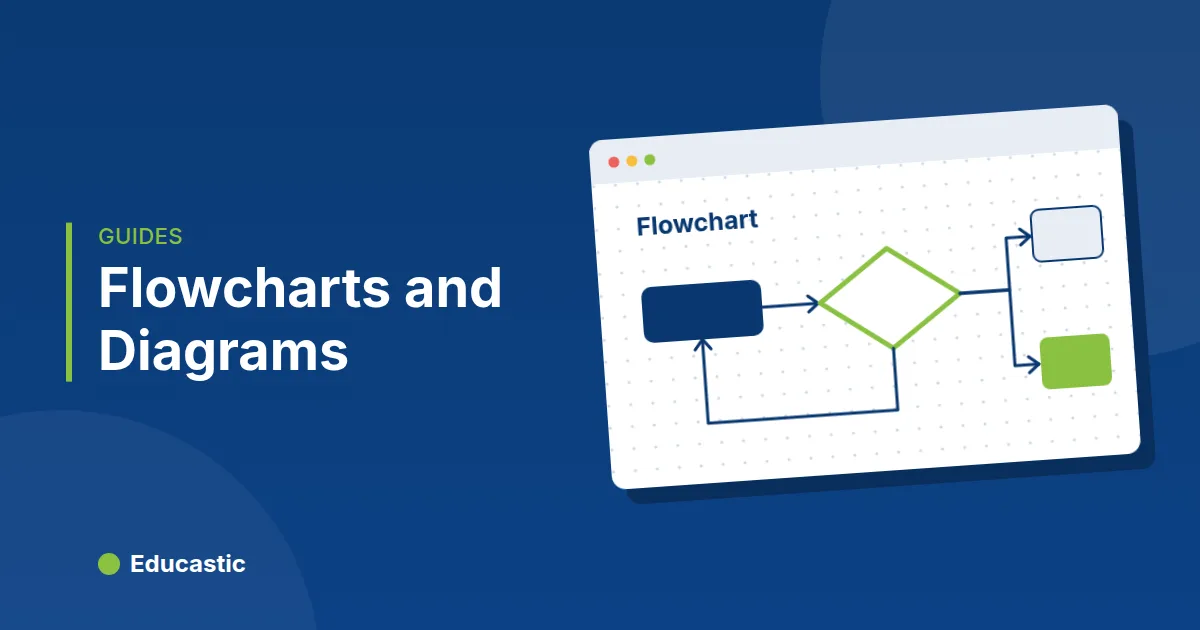
To make a flowchart on an online whiteboard, start from a template or draw the boxes, then join them with connectors: lines that attach to shapes and follow them when you move things. In Educastic, open Shapes > Diagram templates, pick Flowchart, Mind map, Venn, T-chart, KWL chart, Cycle or Timeline, and edit the text in each box.
Diagrams are where a live board earns its place. A process, a cause and effect chain or a comparison is much easier to follow when students watch it grow. The problem used to be the tidying: move one box and every arrow had to be redrawn. Connectors fix that.
What are connectors on a whiteboard?
A connector is a line or arrow whose ends are attached to shapes, so it stays joined when a shape moves, resizes or rotates. On Educastic's whiteboard, any Line, Arrow, Double arrow or Elbow arrow becomes a connector when you start or end it on a shape, sticky note, text box, callout or image.
Everyone in the session sees the arrows follow at once. You can rearrange a diagram mid-explanation without stopping to repair it.
How do you draw connected shapes in Educastic?
You draw connected shapes by hovering a line tool over a shape and starting the line on one of its side dots.
- Draw two shapes, for example a Rhombus for a decision and a rectangle for a step.
- Pick Arrow (or Elbow arrow) from Lines and Arrows.
- Hover the first shape. A dot appears on each side.
- Press on a dot (or anywhere inside the shape) and drag to the second shape. Release on its dot.
- Move either shape. The arrow follows and stays attached.
To detach an end, select the arrow and drag that end to empty board. To reattach it, drag it onto another shape. Double-click any shape or line to type a label in it, such as "Yes" or "No" on a branch.
Quick connect for fast flowcharts
Quick connect is the fastest way to grow a flowchart. Select one shape and a blue "+" appears outside each side. Click a "+" and Educastic adds a copy of the shape on that side, joined by an attached arrow, and selects the copy so you can click again. Five clicks give you a row of five connected steps.
Which diagram templates can you use in class?
Educastic's Diagram templates panel has eight ready layouts. Each one lands in the middle of your view as normal shapes and attached arrows, already selected, so one drag moves it and Delete removes it.
| Template | Good for |
|---|---|
| Flowchart | Algorithms, lab procedures, decision steps (its "No" branch loops back as an elbow) |
| Mind map | Brainstorming, essay planning, vocabulary around a topic |
| Venn diagram (2) | Comparing two characters, countries or number sets |
| Venn diagram (3) | Three-way comparisons, sorting numbers by property |
| T-chart | Pros and cons, facts and opinions, before and after |
| KWL chart | Opening and closing a unit: what I know, want to know, learned |
| Cycle | Water cycle, life cycles, the writing process |
| Timeline | History units, story plot, project milestones |
Double-click a box to replace its text. Add more boxes with quick connect.
What new shapes are on the whiteboard?
The Shapes menu now goes well beyond squares and circles:
- Rhombus, the standard flowchart decision shape.
- Star with 5, 6, 7 or 8 points, set with Points in the top bar. You can change a selected star afterwards.
- More shapes, a grid of eleven: Parallelogram, Trapezoid, Right triangle, Oval, Cylinder, Cube, Cone, Heart, Plus, Check mark and Cross mark.
- Elbow arrow (right-angle turns, with a handle to move the bend) and Block arrow (a thick filled arrow) under Lines and Arrows.
- Thought cloud and Burst under Text Tools, next to the Speech bubble (previously called Cloud). Their outline grows as you type.
For the basics of shapes, text and sticky notes, see shapes, text and sticky notes on the whiteboard.
How do teachers use diagrams in a live lesson?
Build the diagram with the class rather than presenting a finished one. Students remember the steps they helped place.
- Computer science. Drop the Flowchart template, then ask students what the decision should test. Rename the Rhombus and add steps with quick connect while they suggest them.
- Science. Use the Cycle template for the water cycle. Leave the stages blank and give a student drawing access to fill one in.
- Literature. Compare two characters in a Venn diagram (2). Students dictate traits, you place them.
- Unit start and end. Open a unit with a KWL chart, fill in K and W, and save the tab. Return to it in the last lesson for L.
- Geometry. Use Cube, Cylinder and Cone from More shapes to talk about faces and edges, and Right triangle for Pythagoras.
Tips and limits
- Line style after drawing. Select one line or arrow to switch Line between Straight and Elbow, and Arrowheads between None, End and Both, without redrawing it.
- Who can draw diagrams. The teacher, and any student the teacher gives Whiteboard Tools Access.
- What cannot be attached. Connectors attach to shapes, notes, text and images, not to other lines or pen strokes.
- Copies. A copied connector on its own starts detached. Copy the shapes and their arrows together to keep them joined.
- Deleting a shape leaves its arrows on the board. Undo brings the shape back connected.
Frequently asked questions
Do arrows stay attached when I move a shape?
Yes. An attached arrow follows the shape when it moves, resizes or rotates, and everyone in the class sees it update.
Can students build diagrams too?
Yes, if the teacher gives them Whiteboard Tools Access. They get the same shapes, templates and connectors.
Can I change a straight arrow into an elbow arrow?
Yes. Select the arrow and set Line to Elbow in the top bar; its ends, color and attachments stay the same.
How do I remove a whole template at once?
Right after you insert it, the template is selected, so press Delete. Later, select all its parts with the Lasso and press Delete.
Try diagrams in your next lesson
Open the Educastic online whiteboard, go to Shapes > Diagram templates and drop a flowchart onto the board. Then rebuild it with your students using quick connect.