Back
Lasso Select, Align and Arrange Objects on an Online Whiteboard

In this article
- What is the Lasso tool?
- How do you use the Lasso in Educastic?
- When is the Lasso better than a rectangle selection?
- How do you align and space objects evenly?
- How do you bring an object to the front or send it back?
- How do teachers use these tools in class?
- Tips and limits
- Frequently asked questions
- Try it on your board
To select several objects on an online whiteboard without catching their neighbors, draw a loop around them with a lasso tool. In Educastic, click Lasso (or press Shift+L), circle the objects, and everything fully inside the loop is selected. Then right-click to align them, space them evenly or change which one sits on top.
A busy board fills up fast: a worked example, a few sticky notes, an uploaded diagram, a student's answer squeezed into a corner. The usual rectangle selection grabs too much when things overlap. The Lasso and the arrange options are for the moment you want to tidy up without starting again.
What is the Lasso tool?
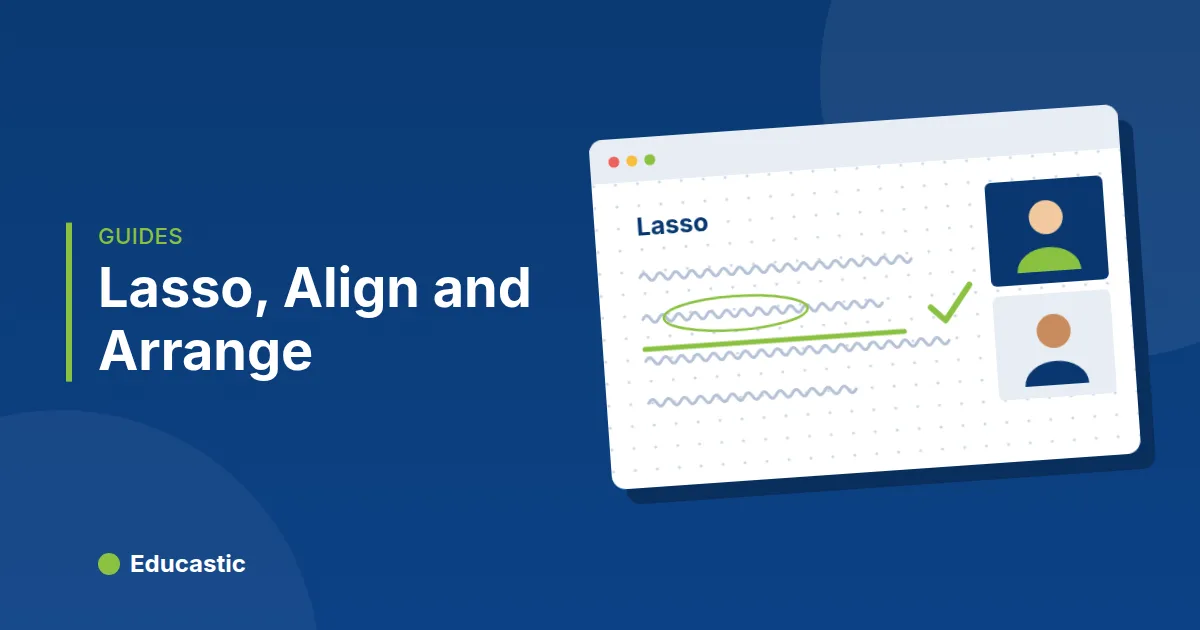
The Lasso is a selection tool that picks objects inside a free-drawn loop instead of a rectangle. On Educastic's whiteboard it selects every object that sits fully inside the loop: shapes, text, sticky notes, images and pen strokes.
The loop itself is only a guide on your screen. It is not drawn on the board and other participants do not see it.
How do you use the Lasso in Educastic?
You use the Lasso by drawing a loop around what you want and letting go.
- Click Lasso in the left toolbar, right after Select. The shortcut is Shift+L.
- Press and draw a loop around the objects. The loop closes itself when you release.
- Everything fully inside is selected, and the tool switches to Select so you can drag the group straight away.
- Move, copy, delete or group the selection as usual.
Hold Shift while you draw a second loop to add more objects to the selection. Press Esc to cancel a loop halfway. A loop that catches nothing clears the selection and keeps the Lasso active.
When is the Lasso better than a rectangle selection?
The Lasso is better whenever the things you want are mixed in with things you do not.
- Handwriting next to a worksheet. Circle just your annotations and move them, without dragging the uploaded page underneath.
- One student's answer. Several students wrote on the same area. Loop around one answer to move it beside the model solution.
- Uneven layouts. Sticky notes in a curve, a mind map, a diagonal timeline: a loop follows the shape where a rectangle cannot.
Frozen objects are skipped, so a locked worksheet stays where it is even if it falls inside your loop.
How do you align and space objects evenly?
Select two or more objects, right-click, and pick an align option. Educastic lines them up and everyone in the class sees the result.
| Option | What it does | Needs |
|---|---|---|
| Align left / Align right | Lines up the left or right edges | 2 or more objects |
| Align top / Align bottom | Lines up the top or bottom edges | 2 or more objects |
| Center and middle | Lines up the centers across or down | 2 or more objects |
| Distribute across | Equal gaps from left to right; the outer two stay put | 3 or more objects |
| Distribute down | Equal gaps from top to bottom; the outer two stay put | 3 or more objects |
Align and distribute are one undo step, so Ctrl + Z puts everything back if the result is not what you wanted. Arrows attached to the shapes move with them.
How do you bring an object to the front or send it back?
Right-click the object and choose Bring to front, Bring forward, Send backward or Send to back. The keyboard shortcuts are:
- Bring to front: Ctrl + Shift + ]
- Bring forward: Ctrl + ]
- Send backward: Ctrl + [
- Send to back: Ctrl + Shift + [
On a Mac use Cmd instead of Ctrl. The new order is synced and saved with the board. Layer changes are not an undo step: if you send something too far, bring it forward again. For the other shortcuts, see whiteboard tabs, shortcuts and undo.
How do teachers use these tools in class?
- Card sorts. Put ten sticky notes on the board, let students sort them into groups, then select each group and use Align left and Distribute down to turn the pile into neat columns.
- Answer reveal. Write the answer, put a filled rectangle over it, and use Send to back on the answer so the cover stays on top until you move it away.
- Number lines. Draw five tick labels roughly in place, select them, and use Distribute across for equal spacing.
- Cleaning up before saving. Lasso the scribbles you no longer need and delete them in one go, then save the tab as a PDF.
Tips and limits
- Who can use them. The teacher, and any student with Whiteboard Tools Access. Lasso follows the session's tool settings, so it appears wherever the Select tool is on.
- Fully inside means fully inside. An object that crosses the loop's edge is not selected. Draw a slightly bigger loop.
- Distribute needs three. With two objects selected the distribute options stay grayed out.
Frequently asked questions
Can students see my lasso loop?
No. The loop is only on your screen while you draw it. Students see the result, such as the objects you move.
Does the Lasso select pen strokes?
Yes. A pen stroke is selected when its line lies inside the loop, so you can pick out handwriting.
Can I undo an align?
Yes. Align and distribute are one undo step. Layer order changes are not; reverse them with the opposite option.
Is there a keyboard shortcut for the Lasso?
Yes. Press Shift+L when the Lasso is available in the session's toolbar.
Try it on your board
Open the Educastic online whiteboard, scatter a few sticky notes, and use the Lasso and Distribute down to line them up in seconds.