Back
Live Whiteboard for Teaching: How to Run an Interactive Online Class

In this article
- What is a live whiteboard?
- Is a live whiteboard the same as sharing your screen?
- What makes a whiteboard truly live and interactive?
- Do you need interactive whiteboard hardware or an online whiteboard?
- How do you teach a live online class on a whiteboard?
- What does a 45 minute live whiteboard lesson look like?
- Which live whiteboard features matter most for teaching?
- What mistakes make a live whiteboard lesson passive again?
- Frequently asked questions
- Teach your next class on a live whiteboard
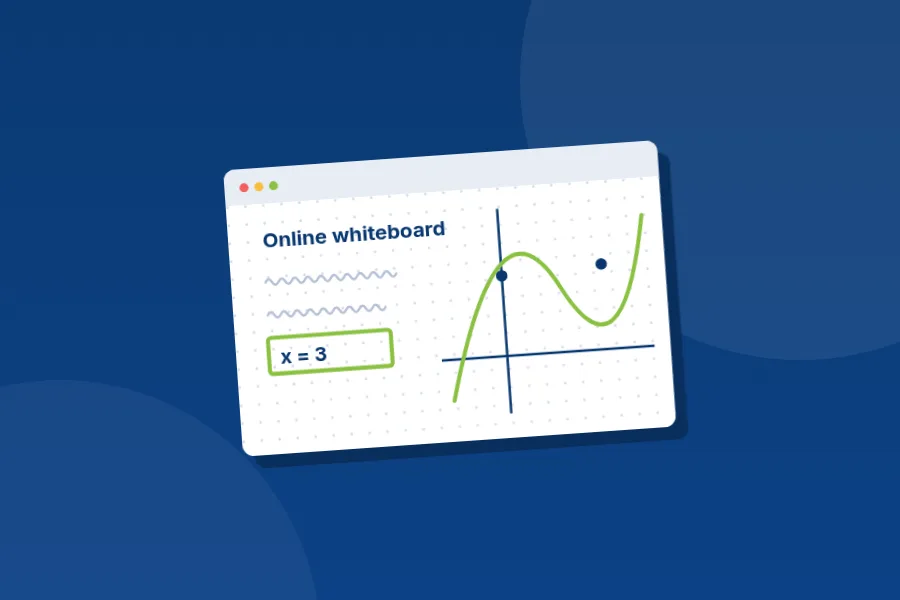
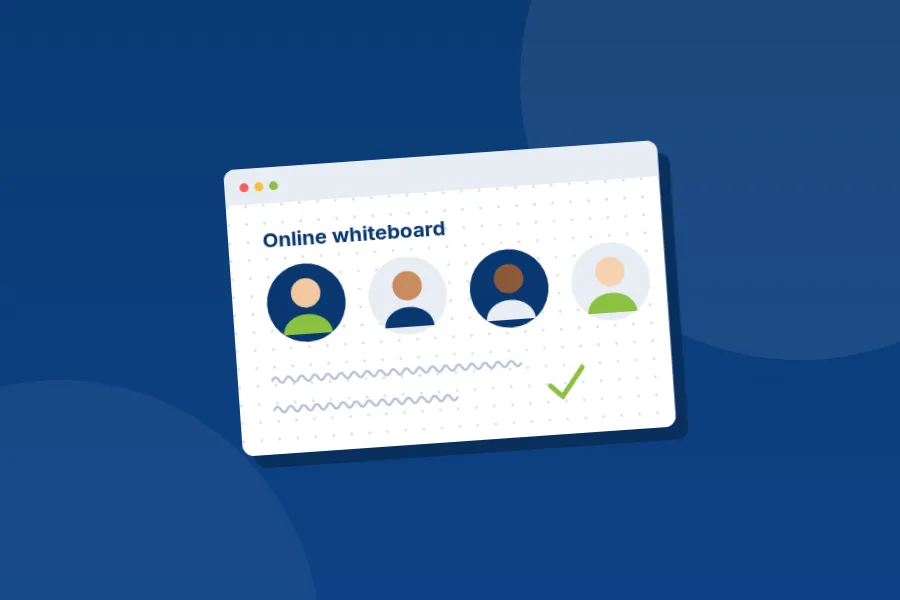
A live whiteboard is a shared online board where the teacher and students write, draw and annotate files together in real time, with every stroke appearing for everyone within moments. For online teaching, it replaces the classroom board: students can take the pen, solve problems in front of the class and show their thinking as it happens.
That last part is what separates a live whiteboard from a slide deck or a screen share. This guide explains what "live" really means, how it compares with classroom hardware, and gives you a 45 minute lesson plan you can run on one this week.
What is a live whiteboard?
A live whiteboard is an interactive digital whiteboard that syncs in real time: when one person draws, types or moves something, everyone in the session sees the change straight away. It runs in a web browser, so each student has the board on their own laptop, tablet or touch screen.
Teachers also call it an online interactive whiteboard, a collaborative whiteboard or a real time whiteboard. The name matters less than the test: can a student pick up the pen and write on the same page you are teaching from, while the whole class watches?
Is a live whiteboard the same as sharing your screen?
No. Screen sharing sends a picture of your desktop to students; a live whiteboard gives them a board they can act on. The difference shows up the moment you ask a student to answer.
| Question | Screen share | Static slides | Live whiteboard |
|---|---|---|---|
| Can students write on it? | No | No | Yes, when the teacher gives access |
| Does content build during the lesson? | Only on the teacher's screen | No, it is prepared in advance | Yes, everyone builds it together |
| Can you annotate a worksheet together? | Only the teacher | No | Yes, on the uploaded file |
| Can you see where students are pointing? | No | No | Yes, with collaborator cursors |
| Is the lesson saved as a document? | Only if recorded | The slides only | Board pages save as a PDF |
Screen sharing is still the right tool for demonstrating software or a website. For explaining, practicing and checking understanding, a live whiteboard keeps students active.
What makes a whiteboard truly live and interactive?
A whiteboard is truly interactive when students act on the lesson, not just see it. Look for these six things in any online whiteboard for teaching:
- Real time sync. A line drawn by one person appears for everyone, so a class can solve one problem together.
- Teacher-controlled pen. The teacher gives drawing access to one student, several or nobody, and takes it back at any time.
- Pointing without drawing. A laser pointer and visible cursors direct attention without cluttering the board.
- Files as workspaces. A worksheet or PDF goes onto the board and the class writes on it.
- Live checks. A timed question shows who has followed the lesson, while the class is still there.
- Video on the same page. Students see and hear you without switching between a call and a board.
On the Educastic whiteboard, all six are built in. The teacher switches on Whiteboard Tools Access per student in the ATTENDEES & PRIVILEGES panel. The laser pointer leaves a red trail that fades, and with "Collaborator cursors" on, students see the teacher's cursor and the teacher sees every student's cursor, each with a name tag. Webcam video, chat and screen sharing sit on the board page.
Do you need interactive whiteboard hardware or an online whiteboard?
If any of your students learn from home, you need an online whiteboard; a classroom display cannot put the pen in a remote student's hand. The two also work well together.
| Question | Classroom interactive display | Online live whiteboard |
|---|---|---|
| Who can write on it? | People in the room, at the screen | Every invited participant, on their own device |
| Where does it work? | One classroom | Any browser, at home or at school |
| What do you need to start? | A hardware purchase and installation | A browser and an account |
| Can remote students join? | Only through a separate video tool | Yes, with video and chat on the same page |
The Educastic whiteboard runs in the browser on laptops, tablets and touch screens, with no app to install. A school that already owns an interactive display can open Educastic on it and teach the room and remote students from the same board. Our guide to the hybrid classroom with an online whiteboard shows that setup step by step.
How do you teach a live online class on a whiteboard?
Plan the lesson as a sequence of board tabs, then hand students the pen at planned moments. This routine works for a 45 to 60 minute class in Educastic:
- Prepare the board. Before class, click "Load File to Whiteboard" and upload your worksheet or slides. Word and other documents convert to PDF on upload, and each file opens in its own tab.
- Start or schedule the session. Use "Start Educast Now" for an instant class, or schedule one and share the invite link. Guests wait in the waiting room until you admit them.
- Teach the first idea live. Write the worked example on the board in two colors: one for the steps, one for your reasoning. Students see each stroke as you write it.
- Hand over the pen. Open ATTENDEES & PRIVILEGES and switch on Whiteboard Tools Access for the student who answers next. Take it back when they finish.
- Point, don't draw. Use the laser to point at a step without adding marks, and turn on "Collaborator cursors" when you want to see where students are looking.
- Check understanding. Click "Publish Questions" to send a short test. Students answer against a "Time Left" countdown, and you see correct, wrong and missing answers per question.
- Record and save. Record the session for students to rewatch, and save the board pages as a PDF for revision.
What does a 45 minute live whiteboard lesson look like?
A good live whiteboard lesson moves the pen back and forth between teacher and students every few minutes. Use this plan as a starting template and adjust the timings to your subject.
| Minutes | On the board | Who holds the pen |
|---|---|---|
| 0 to 5 | Warm-up question on the Home tab | Two students, one at a time |
| 5 to 15 | Worked example on the uploaded worksheet | Teacher |
| 15 to 25 | Guided practice: the class solves the next problem step by step | A different student for each step |
| 25 to 35 | Independent practice in the notebook, then one student shares on the board | Teacher, then one student |
| 35 to 40 | Two-question test with "Publish Questions" | Nobody: students answer the test |
| 40 to 45 | Fix the most common mistake from the test results together | Teacher and one student |
The timings are a guide, not a rule. The habit that matters is that students hold the pen during the lesson, not only at the end. For more formats, see these interactive whiteboard activities for your online class.
Which live whiteboard features matter most for teaching?
The features that matter most are the ones students touch during the lesson. Here is how each one helps.
| Feature | Why it matters in a lesson | In Educastic |
|---|---|---|
| Shared pen with teacher control | Students show their working, the teacher keeps order | Per-student Whiteboard Tools Access |
| Document annotation | Real worksheets become the lesson surface | Upload PDFs, Word, Excel and PowerPoint files |
| Math tools | Neat equations and graphs, not freehand sketches | Formula tool, Desmos graphing, grid backgrounds |
| Live quizzes | Instant evidence of who understood | Timed tests with an answer summary |
| Synced video | Everyone watches the same moment | The teacher's play and pause stay in sync |
| Recording | Absent or struggling students can catch up | Recordings in My Recordings, replayable in class |
What mistakes make a live whiteboard lesson passive again?
The most common mistake is teaching on the board for the whole lesson while students only watch. Avoid these as well:
- Giving everyone the pen at once. Ten people drawing on one page becomes noise. Give access to one student or a small group at a time.
- Pasting finished answers. A completed solution on a slide is not interactive. Build it live.
- One crowded page. Open a new tab for each idea instead of erasing, so the saved PDF reads in order.
- No check at the end. Close with a two-question test or an exit task on the board.
With guests in class: people who join without an account don't see blank new tabs, only tabs opened from an uploaded file. Open guest activities from a file, or keep them on the Home tab.
Frequently asked questions
Do I need to buy an interactive whiteboard to teach online?
No. A live online whiteboard runs in the browser, and a laptop with a headset is enough. A drawing tablet or stylus makes handwriting neater, but it is optional.
Can students write on the live whiteboard at the same time?
Yes. In Educastic the teacher gives Whiteboard Tools Access to each student individually and can take it back at any time, so several students can work on the board together.
How many students can join a live whiteboard class in Educastic?
Educastic has been tested with up to 49 attendees in one session.
Does the Educastic live whiteboard work on tablets and touch screens?
Yes. It runs in the browser on laptops, tablets and touch screens, with no app to install.
Is the Educastic live whiteboard free?
Yes. Educastic is free for early adopters.
Teach your next class on a live whiteboard
Open the Educastic online whiteboard, upload one worksheet, and plan three moments in your next lesson where a student takes the pen.