Back
Taking Notes During an Online Class: The Whiteboard Notes Panel

In this article
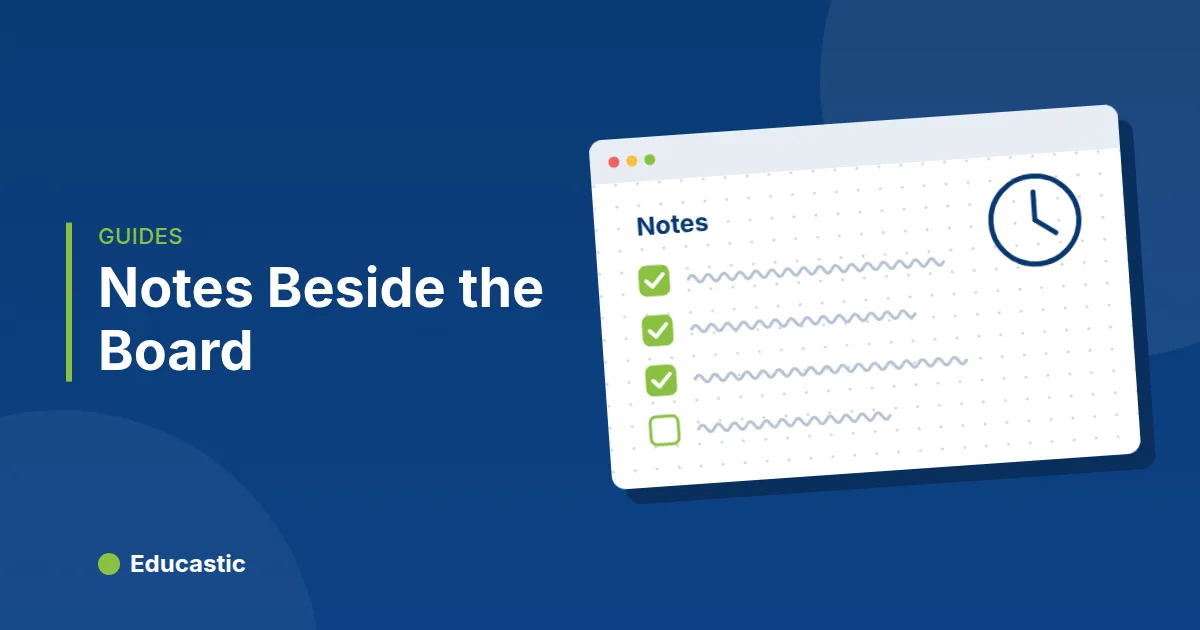
The easiest way to take notes during an online class is in a panel that sits beside the board, so you never switch windows. In Educastic, open Reactions > Notes to get a private notes panel with templates, checklists and board screenshots. Teachers can share a note with the class; students can export theirs as a PDF.
Students who switch to another app to take notes miss what happens on the board. Teachers who keep their lesson plan in another tab lose their place. A panel that floats over the whiteboard keeps notes and lesson in one view.
What is the Notes panel?
The Notes panel is a side panel on Educastic's whiteboard where each signed-in participant keeps their own notes for the session. Each person can have many notes, each with a title, and every note is private to its author unless the teacher shares it.
It works alongside the existing Notebook, which stays as it is. Use the Notebook for one long rich-text document per session, and the Notes panel for several short, structured notes. The Notebook is covered in the notebook and sketch pad guide.
How do you open and use the Notes panel?
You open the panel from the Reactions menu in the whiteboard header.
- Click Reactions in the header, then Notes.
- Click New note and pick a template, or start with an empty note.
- Type a title, then write. Type "/" to add a block: Text, Heading, Checklist, Bullet list, Numbered list, Quote, Divider or Board screenshot.
- Click Keep open to pin the panel beside the board. Drag its header to move it and its corner to resize it. Educastic remembers the size on your device.
Notes save on their own a moment after you stop typing. The panel shows "Saving…" and then "Saved". If the connection drops, it keeps retrying with your newest text.
Which note templates are there for teachers and students?
Educastic offers templates when you create a note, so you start from a structure instead of a blank page. Teachers and students see different sets.
| For teachers | For students |
|---|---|
| Lesson plan (goals, materials, steps, checklist) | To-do list |
| Board annotation (what is on the board, key points, follow up) | Cornell notes (questions, notes, summary) |
| Homework list | Vocabulary (word: meaning, example sentences) |
| Exit ticket questions | Questions for the teacher |
| Lesson summary (today we learned, examples, to review) |
How do teachers use the Notes panel in class?
- Lesson plan on screen. Open the Lesson plan template before class, pin the panel, and tick the checklist as you go. You never lose your place in the lesson.
- Share the homework. Fill in the Homework list template and click Share with class. Students see it read-only under Class notes when they open the panel or click Refresh.
- Exit tickets. Share the Exit ticket questions note in the last five minutes. Students answer them in a note of their own.
- Capture the board. Add a Board screenshot block to a Board annotation note to keep a picture of the board at an important moment, with your comments under it.
Only the session's host (the owner or a co-host) can share a note with the class.
How do students use the Notes panel?
Students get templates built for learning, and their notes are private: the teacher cannot read them.
- Cornell notes during a lecture-style lesson: questions and key words on top, notes in the middle, a short summary at the end.
- Vocabulary in a language class, one "word: meaning" line per new word.
- Questions for the teacher, written while the teacher talks and asked at a natural pause.
- Board screenshot blocks to keep the worked example the teacher just finished.
At the end of class, students click Export and choose Download Markdown or Print or save as PDF to keep a copy.
Tips and limits
- Signed-in users only. Guests who joined without an account do not see Notes, because there is no account to keep them in.
- Finding notes later. Notes stay with the session and open again from its board. They are not listed on the dashboard yet, so export anything you want to keep elsewhere.
- Shared notes are read-only. Students can read a shared Class note but cannot edit it.
- Shared notes do not pop up. Tell students when you share one, so they open the panel or click Refresh.
- Live sessions only. Notes are not offered in pre-recorded sessions.
Frequently asked questions
Can the teacher read students' notes?
No. A student's notes are private. The teacher only sees notes the student exports and sends on purpose.
Can students share notes with the class?
No. Only the session's host, the owner or a co-host, can use Share with class.
Does the Notes panel replace the Notebook?
No. The Notebook stays as it is. The Notes panel adds several short notes with templates next to it.
Can I save my notes as a PDF?
Yes. Click Export, then Print or save as PDF, and choose "Save as PDF" in your browser's print window.
Try the Notes panel in your next lesson
Open the Educastic online whiteboard, start a session, and open Reactions > Notes to plan your lesson with the Lesson plan template.